Checklist: Debugging Workflow Issues in HighLevel
By HL Max10 min read
When your GoHighLevel workflows break, they can disrupt automations, waste time, and frustrate clients. Common problems include triggers not firing, emails getting stuck, or conditional logic errors. To fix these, follow this step-by-step guide:
- Spot Errors: Look for warning icons (⚠️) on the workflow canvas and check the Error Tab for details like misconfigured triggers or integration failures.
- Use Debugging Tools: Review workflow logs, test triggers, and analyze stats to identify bottlenecks or missteps.
- Test Thoroughly: Use live tests with fresh contacts to ensure workflows function as expected, especially for complex elements like custom code or conditional logic.
- Simplify Workflows: Avoid overly complex designs by breaking workflows into smaller, focused steps.
Regularly reviewing execution logs and keeping workflows modular can help prevent recurring issues and keep automations running smoothly.
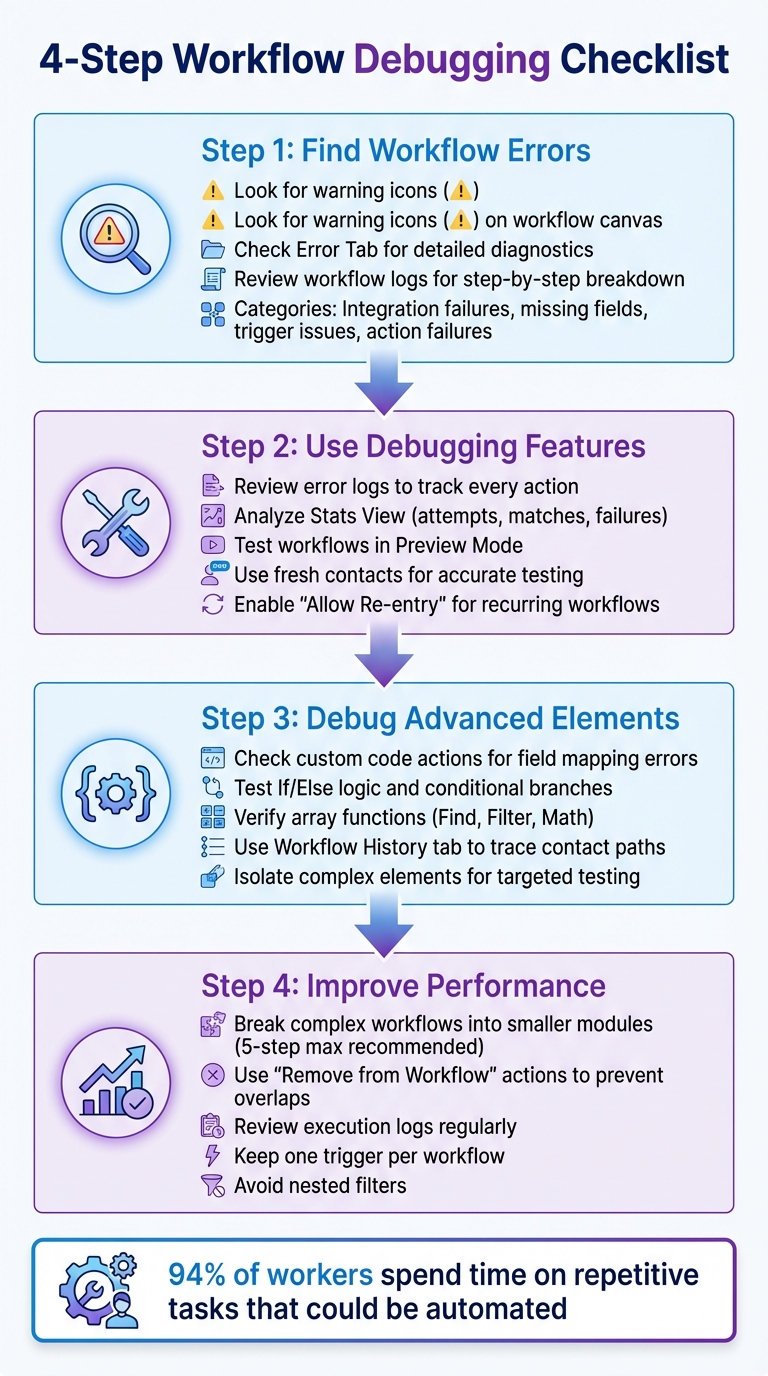
4-Step GoHighLevel Workflow Debugging Process
Using Highlevels A.i. Workflow Decision Maker For DBR
Step 1: Find Workflow Errors
The first step in debugging is identifying exactly where the issue lies. GoHighLevel simplifies this process with its visual cues and built-in error tracking tools.
Look for Error Icons
Begin by scanning your workflow canvas for warning symbols (⚠️). These icons appear next to specific triggers or actions, helping you zero in on the problematic step. For example, you might see them on a misconfigured trigger, a broken link between actions, or an action with incorrect settings that prevent it from working. These symbols clearly indicate which part of your workflow needs fixing.
Use the Error Tab
After spotting the warning icons, navigate to the Error Tab in the side panel for a detailed diagnostic view. This tool organizes all current errors by category, such as integration failures, missing field data, trigger issues, or action failures. Instead of guessing what went wrong, the Error Tab provides clear messages explaining issues like an email failing due to server problems, an SMS not sending because of carrier restrictions, or a third-party API connection breaking.
For more clarity, check the workflow logs. These logs provide a step-by-step breakdown of action timings and error details, making it easier to spot bottlenecks or broken automations you might have overlooked.
If the issue involves an integration error, try refreshing the connection through the Integrations tab.
Once you've identified the errors, you can move on to GoHighLevel's debugging tools to resolve them efficiently.
Step 2: Use HighLevel's Debugging Features

Once you've identified errors, it's time to dive into GoHighLevel's debugging tools. These tools are essential for diagnosing and fixing issues, allowing you to fine-tune your workflow before going live. By analyzing and testing your fixes, you can ensure everything runs smoothly.
Review Error Logs
GoHighLevel provides detailed workflow logs that track every action in your automation. When errors occur, these logs highlight exactly when actions were triggered and point out bottlenecks or missteps. They help you identify problems such as misconfigured triggers, broken integrations, or incorrect field mappings.
Review Trigger Statistics
The Stats View offers a clear breakdown of attempts, matches, and failures. This data helps you pinpoint whether the issue stems from the trigger itself or from the criteria contacts need to meet. By reviewing contact details, you can uncover issues like overly restrictive filters, missing tags, or inaccurate lead scores.
For testing, always use a fresh contact to avoid cached data interfering with your results. Delete and recreate test contacts as needed. Additionally, make sure the "Allow Re-entry" option is enabled if contacts are expected to re-enter the workflow multiple times, such as for recurring appointments.
Test Workflows in Preview Mode
Use the "Test Workflow" button at the top right of the builder to simulate the customer journey. This feature provides logs showing which actions succeeded and where failures occurred. However, keep in mind that this test mode has limitations. For more accurate results, conduct a live test by triggering the workflow as a real customer. Then, review the Contact Record to trace the exact path the contact followed through the automation.
If your workflow fails during testing, try simplifying "If/Else" conditions or filters. This helps confirm that the basic structure works before reintroducing complexity.
"The option 'Test Workflow' in the top right of your Workflow builder has limitations when testing. Try to use an actual contact and run a live test by triggering the workflow as a live customer."
- GoHighLevel Help Center
These debugging steps lay the groundwork for tackling more complex troubleshooting tasks in the next phase.
sbb-itb-f031672
Step 3: Debug Advanced Workflow Elements
Once you've mastered basic error detection, it's time to tackle more complex workflow components. Advanced elements like custom code actions, conditional logic, and array functions often require a deeper level of troubleshooting to identify and fix issues effectively.
Check Custom Code Actions
Custom code actions can stumble over issues like incorrect field mappings or API connection problems. Start by auditing each field mapping to ensure the data aligns with your script's expectations. Even small mismatches can lead to silent failures that are tricky to spot.
Testing your custom code live is crucial - relying solely on the Test Workflow button won't always reflect real-world conditions. Manually trigger the workflow using a real contact and carefully review the execution logs to pinpoint where the script works and where it breaks down. Always use a fresh contact for each test to avoid cached data interfering with your results.
If your custom code interacts with webhooks or external APIs, head to the Integrations tab to check for failed connections. Refreshing these connections often resolves execution errors. To narrow down the issue, try isolating the custom code action from the rest of the workflow. This can help determine if the problem lies within the script itself or the surrounding workflow structure.
"Use GoHighLevel's logs to track and diagnose errors at every step of your workflow."
- Aslam Manzoor, Founder, LeadsFlex
Once your custom code is running smoothly, move on to verifying your conditional logic.
Test If/Else Logic
Conditional branches can go awry when filters don't account for every possible outcome. Carefully review each If/Then statement to ensure that the criteria - whether based on tags, fields, or behaviors - are clearly defined and directing contacts to the correct actions. Misconfigured filters are a common culprit behind contacts not following the intended path.
Use the Workflow History tab to trace each branch and identify where contacts might be deviating. If things aren’t working as expected, simplify your filters to make troubleshooting easier. Testing with fresh contacts is also helpful, and enabling the "Allow Re-entry" option ensures you can test repeated passes through the logic without restrictions.
After refining your conditional logic, focus on testing data processing with array functions.
Test Array Functions
Array functions - like Find, Filter, and Math - can fail if the data isn't formatted consistently. To prevent errors, standardize formats for dates, numbers, and other fields so the workflow processes data correctly. Create test leads with specific attributes, such as scores, tags, or custom fields, to verify that your array functions are targeting the right contacts.
Live testing is essential here, as preview modes often miss real-world issues. After each test, review the execution logs to confirm that array actions are triggering properly and processing the intended data. If a complex filter isn't functioning as expected, break it down into a single condition to isolate the problem. Once resolved, you can reintroduce additional layers of logic.
Step 4: Improve Workflow Performance
Once you've resolved errors, the next step is to refine your workflow structure and keep an eye on its performance. This ensures your processes remain efficient over time. After addressing technical glitches, shift your focus to making workflows more streamlined and monitoring how they operate. Two key strategies can help here: simplifying the structure and keeping tabs on execution patterns.
Break Down Complex Workflows
Overly complex workflows are not only harder to manage but also more likely to fail. As the HighLevel Expert Team advises: "Avoid Logic Overload: Keep workflows simple and modular. Don't create a 50-step monster."
Instead of cramming everything into one massive workflow, divide your processes into smaller, focused workflows. For example, you could create separate workflows for each stage of your sales process - one for lead outreach, another for appointment booking, and a third for contract signing. A practical method involves linking five smaller workflows (A through E) that work together seamlessly. For instance, Workflow A might handle initial lead outreach. When a lead books an appointment, Workflow B triggers, automatically removing the contact from Workflow A. This pattern continues through the later stages, such as sales pitches, contract signing, and onboarding. Each workflow updates the contact's status in the pipeline without causing logic conflicts.
To prevent overlapping automations, always include a "Remove from Workflow" action whenever a contact moves to the next stage. Additionally, use one trigger per workflow and avoid using nested filters. This keeps troubleshooting straightforward.
Once your workflows are modular, use execution logs to confirm that each part is functioning as intended.
Review Execution Logs Regularly
Execution logs are your best friend when it comes to spotting recurring issues. These logs track every action within a workflow, making it easier to identify problems like API failures or field mapping errors. Instead of patching up symptoms, you can tackle the root causes.
In August 2025, HighLevel enhanced its platform by improving execution logs and enrollment history, giving users more detailed insights for troubleshooting complex automations. The Workflow History tab is particularly useful - it shows where contacts get stuck and helps verify that your conditional logic is working as intended. If you notice frequent problems in specific branches of a workflow, it’s a sign that the process might need to be simplified or broken into smaller parts.
Regularly reviewing these logs also helps you catch issues with third-party integrations before they snowball into bigger problems.
Conclusion
This checklist helps reduce downtime and minimizes the need for manual intervention. As the HighLevel team puts it: "Automations work faster than manual human processes and once set up, make few (if any) mistakes." The real trick is identifying problems early and tackling their root causes instead of repeatedly addressing surface-level symptoms. Incorporating these practices into your regular workflow audits can help maintain high performance over time.
It’s a good idea to test automations using new contacts and live submissions to better reflect actual customer behavior and avoid issues caused by cached data.
Here’s a staggering fact: 94% of workers spend part of their week on repetitive tasks that could be automated. But those automations only save time and effort if they’re functioning properly.
As we’ve highlighted, keeping workflows modular and well-documented can save you from common troubleshooting headaches. Using consistent naming conventions and carefully managing "Allow Reentry" settings can prevent many recurring problems. When your team can quickly pinpoint where a contact gets stuck, you’ll spend less time fixing errors and more time focusing on growth.
For more in-depth guidance on GoHighLevel automation and agency systems, check out HL Max.
FAQs
How do I troubleshoot a workflow error in GoHighLevel?
To address a workflow error in GoHighLevel, start by examining the trigger settings. Ensure the criteria, like form submissions or tag additions, align with what you expect. Run a test entry to verify the trigger activates as intended.
Next, take a close look at the workflow settings. Check for any global limitations, such as time windows, time zones, or re-entry rules, that could be preventing actions from running. If the problem remains, move on to the action steps in the workflow. Temporarily disable them one at a time to identify where the process is breaking. Pay extra attention to integrations, such as email services or Twilio, since issues like incorrect API keys or unverified domains often cause disruptions.
Lastly, review the activity log or contact timeline for error messages that might provide clues about the problem. Once you've pinpointed the issue, adjust the settings, test the workflow again, and make a note of the solution for future reference. This step-by-step method can help you quickly resolve most workflow errors.
How can I test and ensure my workflow in GoHighLevel is working properly?
To ensure your workflow operates as expected in GoHighLevel, here’s a step-by-step guide:
- Check your settings and permissions: Start by confirming that your default email, sender name, and other system settings are correctly configured. Double-check that only authorized users have admin access or the ability to edit workflows.
- Review the workflow trigger: Open your workflow and verify the trigger is set up properly - whether it’s a form submission, a tag being added, or another event. Make sure any filters match the test contact you’ll be using.
- Test with a dummy contact: Create a test contact that fulfills the trigger criteria or manually apply the trigger. This way, you can run tests without affecting actual leads.
- Monitor the activity log: Execute the workflow and track the contact’s timeline or activity feed. Confirm that each action - like sending an email, SMS, or assigning a task - happens in the correct sequence. Watch for any skipped steps or errors.
If something doesn’t work as expected, review any error messages, tweak the settings, and test again until everything functions as intended. Once resolved, document the final setup to maintain consistent performance in the future.
How can I simplify workflows in GoHighLevel to improve performance and reduce errors?
To ensure smoother workflows and reduce errors in GoHighLevel, start by taking a close look at your current setup. Pinpoint inefficiencies by reviewing triggers, filters, and actions, and eliminate any duplicate steps or unnecessary processes. Keep conditional logic straightforward by testing one primary condition per branch and steering clear of overly complex nesting.
Before diving into changes, double-check system defaults, such as email configurations and sender details, to sidestep common problems. Restrict workflow editing permissions to a select group of trusted team members to prevent accidental modifications. Once you've made improvements, test small sections of the workflow using sample contacts, fine-tuning as necessary. When everything is running smoothly, save the optimized workflow as a reusable template to save time down the line.
By simplifying processes, focusing on clarity, and thoroughly testing, you’ll build workflows that are faster, more efficient, and reliable.