How to Reduce No-Shows by 50% with Automated Appointment Reminders
By HL Max11 min read
Missed appointments cost businesses time, money, and opportunities. Automating appointment reminders can cut no-shows by up to 50% or more. Here's how it works:
- Why No-Shows Happen: Forgetfulness and miscommunication are the top reasons clients miss appointments.
- The Cost of No-Shows: In 2023, U.S. small businesses lost $27 billion to missed appointments, with each no-show costing about $107.
- Why Automation Works: Automated reminders sent via SMS, email, or calls ensure clients remember their appointments without manual effort.
- Key Features of Effective Systems:
- Multi-channel communication (text, email, voice).
- Clear, concise, and actionable messages.
- Real-time alerts for your team to manage changes.
- Best Timing for Reminders:
- Confirm immediately after booking.
- Send reminders 2–3 days before, 1–8 hours prior, and a same-day nudge.
- Tools Like GoHighLevel: Platforms that combine scheduling, reminders, and CRM simplify the process, saving time and cutting costs.
Automating reminders not only prevents missed appointments but also boosts efficiency and revenue. Keep reading to learn how to set up these systems effectively.
Automate Your Appointment Reminders With Go Highlevel
What Makes a Reminder System Work
A reliable reminder system that cuts down on no-shows needs three essential components: multi-channel delivery, concise messaging, and real-time team alerts. If any one of these is missing, the effectiveness of your client communication takes a hit.
Send Reminders Through Multiple Channels
Not all your clients rely on the same communication method. Some are glued to their text messages, others check email regularly, and a few still respond best to phone calls. SMS reminders boast response rates between 97% and 99%, with an impressive open rate of about 98%. Emails, while useful for detailed instructions, tend to see lower engagement.
GoHighLevel simplifies this by offering SMS, email, and voice call options all in one platform. You can create a layered system: send an SMS 48 hours before the appointment, follow up with an email containing detailed information, and make a same-day call for high-priority clients or those with a history of no-shows. By using multiple channels, you ensure your reminders reach clients regardless of their preferred communication style. Next, focus on making your messages clear and actionable.
Use Clear, Easy-to-Read Messages
Confusing or vague reminders often lead to missed appointments. Your messages should clearly outline the basics: who, what, when, and where. For U.S. clients, format dates and times in a familiar way - like "Friday, December 12, 2025 at 3:00 PM" - rather than using military or international formats. Be sure to include the type of service, the location or video call link, and any steps the client needs to complete beforehand.
Make it simple for clients to reschedule or cancel. Two-way communication is key - allowing clients to reply directly to confirm, cancel, or request a new time. This eliminates the need for them to search for your contact details or log into a portal. The easier it is to respond, the more likely they’ll take action instead of skipping the appointment. Lastly, keep your team in the loop with real-time updates.
Alert Your Team in Real Time
Timely notifications ensure your team stays on the same page when appointments change. For example, if a client cancels their 2:00 PM appointment at 1:45 PM, your team can quickly shift gears - whether that’s reaching out to a waitlisted client or redirecting their efforts elsewhere. This prevents wasted time and resources.
GoHighLevel streamlines this process by sending instant alerts to your team via SMS or email whenever a client responds to a reminder. These real-time updates allow you to proactively manage your schedule and address issues before they turn into costly problems.
When to Send Reminders for Best Results
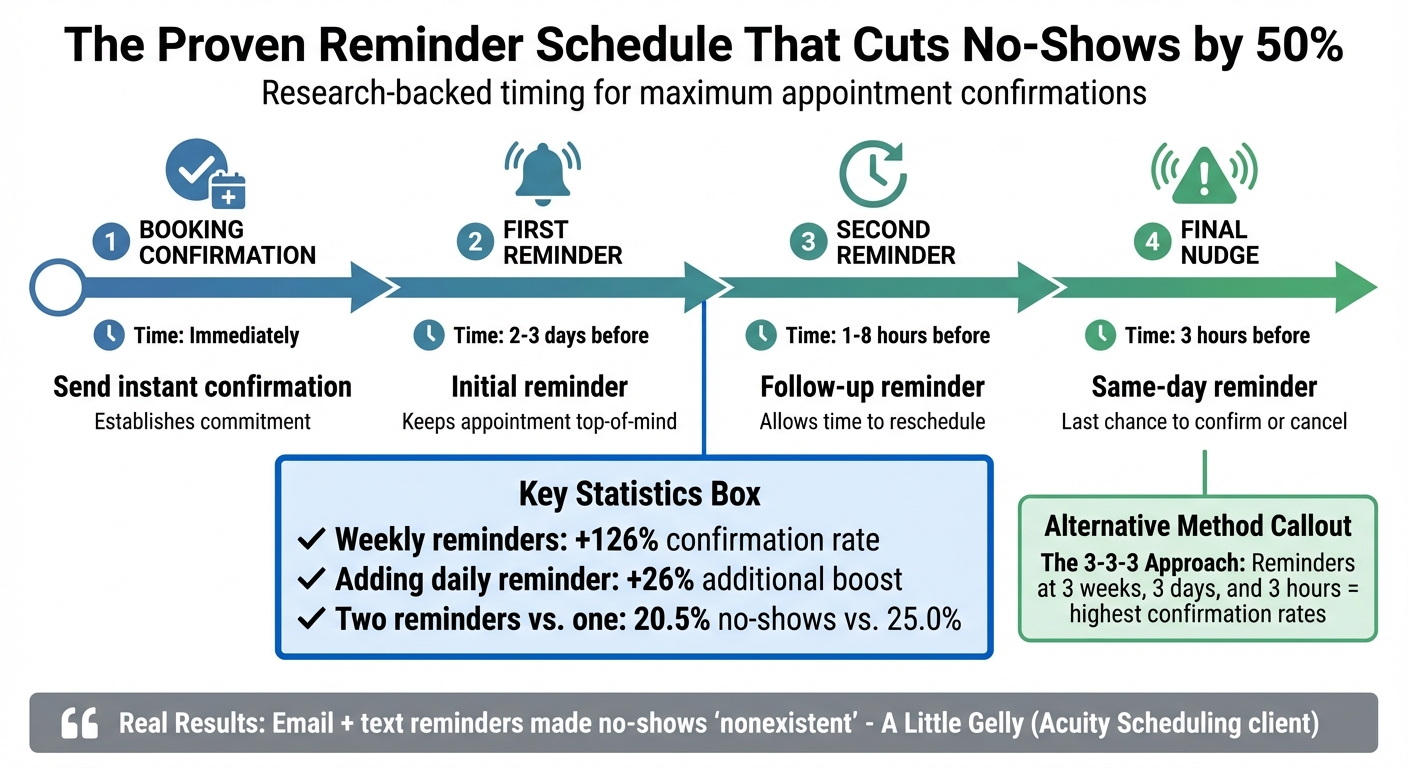
Optimal Appointment Reminder Schedule to Reduce No-Shows by 50%
Send reminders too soon, and they’ll slip clients' minds; send them too late, and they won’t have time to adjust. Striking the right balance ensures appointments stay top of mind without overwhelming your clients.
The Best Reminder Schedule
A multi-step reminder strategy works far better than a single notification. Research backs this up, with the "3-3-3" approach - reminders sent 3 weeks, 3 days, and 3 hours before an appointment - achieving the highest confirmation rates [5,27].
Here’s a sequence that has proven to significantly reduce no-shows:
- Confirm the booking immediately.
- Send the first reminder 2–3 days before the appointment.
- Follow up with another reminder 1–8 hours prior.
- Add a same-day nudge about 3 hours before the appointment.
Weekly reminders increase confirmation rates by 126% compared to no automation, while adding a daily reminder on top of the weekly message provides an extra 26% boost. For example, A Little Gelly, a client of Acuity Scheduling, reported that email and text reminders made no-shows "nonexistent". Similarly, R Accounting Group noted that automated reminders "seriously reduced missed meetings".
Once you’ve nailed down the timing, focus on tailoring your reminders to fit the type of appointment.
Adjust Reminders by Appointment Type
Not every appointment calls for the same reminder strategy. For first-time clients, include a warm welcome, clear directions, and any necessary forms. High-value consultations deserve a more detailed sequence to build commitment. Virtual appointments should always include meeting links and platform instructions in every reminder. Recurring appointments can stick to a standard reminder schedule, but it’s smart to stay flexible based on individual client preferences.
For industries prone to high no-show rates or appointments requiring significant prep work, multiple reminders in the days leading up to the appointment can make a big difference. For instance, research on high-risk patients found that two reminders reduced no-show rates to 20.5%, compared to 25.0% with just one reminder.
Customizing your reminders ensures they meet the needs of each client, making automation an even more effective tool for reducing no-shows.
Write Reminders That Get Read
Timing is key, but the content of your reminders is just as important. Clear, concise, and actionable messages are more likely to grab your clients’ attention.
Start by personalizing the message - address the client by their first name to make it feel more human. Mention your business name early so they immediately know who’s reaching out. Then, get straight to the point: include the appointment date, time, and service type. Dates should be formatted as "Friday, December 13, 2025 at 2:30 PM." For in-person appointments, add the full address; for virtual ones, include a direct meeting link.
Keep it short. A sample SMS might look like this:
"Hi Sarah, this is a reminder about your haircut appointment with Salon Luxe on Friday, December 13, 2025, at 2:30 PM at 123 Main Street, Austin, TX. Reply C to confirm or call 512-555-0100 to reschedule."
For emails, you can include a bit more information - like parking details or items to bring - but make sure the key details are at the top.
Always include a clear call-to-action. Whether it’s asking clients to confirm, add the appointment to their calendar, or call to reschedule, tell them exactly what to do next. Provide your contact information for any questions, and if you have a cancellation policy, mention it briefly to set expectations.
Lastly, send reminders during regular business hours - avoid late nights, early mornings, or weekends for work-related appointments. Always include an opt-out option to respect client preferences and maintain a good sender reputation.
sbb-itb-f031672
How to Set Up Reminders in GoHighLevel
GoHighLevel offers two convenient ways to automate appointment reminders: calendar-level notifications for quick configurations and custom workflows for more detailed control. If you're familiar with tools like Calendly or Acuity Scheduling, you'll appreciate how GoHighLevel simplifies automation by bringing everything into one platform.
Configure Calendar Notifications
The fastest way to get started is through your calendar settings. Go to Calendar Settings, choose the calendar you want to modify, and you'll find options to set notifications for various events - like bookings, reminders, cancellations, and reschedules. Notifications can be sent through Email, SMS, In-App messages, or even WhatsApp, giving you plenty of communication options.
You can decide who receives these notifications - clients, their guests, your team, or even additional recipients like front desk staff. Adjust the timing and content of each notification to match your business needs. This method is ideal for simple reminder schedules. However, if you need something more tailored, custom workflows are the way to go.
Build Custom Reminder Workflows
For more control over your reminder sequences, use GoHighLevel's workflow builder. Navigate to Automation > Workflows, and create a new workflow. Start by adding a trigger, such as Customer Booked Appointment or Appointment, and apply filters to target specific scenarios. For example, the "In Calendar" filter allows you to create unique workflows for different appointment types, while the "Has Tag" filter is perfect for managing VIP clients.
You can then add actions like Send Email or Send SMS for each reminder, and use Wait steps to control the timing. For instance, you might schedule an SMS 48 hours before the appointment, followed by another reminder closer to the time. Personalize your messages using custom values like {{contact.name}} or {{appointment.start_time}}. To ensure all reminders go out regardless of client responses, disable the "Stop on response" option.
Many users have seen up to a 40% reduction in no-shows after implementing automated workflows. Once your reminders are set up, it's important to handle any booking changes dynamically.
Manage Reschedules and Cancellations
GoHighLevel automatically stops reminders when an appointment is canceled. To make it easy for clients to manage their bookings, include {{appointment.reschedule_link}} and {{appointment.cancellation_link}} in your notifications.
You can also set a cutoff time in the calendar settings to prevent last-minute changes - like disabling reschedule links 24 hours before the appointment. If a client reschedules, the system automatically sends updated confirmations and adjusts the reminder sequence. For team updates, use workflows with triggers for appointment status changes to notify staff immediately about any modifications. This ensures everyone stays informed without the need for manual follow-ups, which is especially helpful when managing multiple team members or locations.
Track and Improve Your Reminder System
Setting up automated reminders is just the beginning. The real game-changer lies in analyzing your results and tweaking your methods based on actual data. GoHighLevel equips you with tools to monitor attendance and experiment with different strategies for better results.
Monitor Your Show Rate
The Appointment Report in GoHighLevel (found under the Reporting tab) is your go-to resource for tracking how well your reminders are working. It provides a breakdown of appointment statuses - Booked, Confirmed, Showed, No Show, Canceled - making it easy to calculate your show rate. You can filter the data by calendar, date, or appointment type to uncover trends. For instance, you might notice higher no-show rates for evening slots or specific services.
The list view lets you take a closer look at individual no-shows, helping you identify patterns. Are certain clients consistently missing their appointments? Do no-shows spike on particular days? Export this data to a spreadsheet to track trends over time and measure the impact of any changes you make. These insights help you refine your approach and test new strategies effectively.
Test Different Reminder Approaches
Not all clients respond to reminders in the same way. During the booking process, ask clients how they prefer to be contacted - this can significantly improve engagement. Then, experiment with different reminder schedules. For example, try sending a confirmation right after booking, a reminder 2–3 days before the appointment, and a final nudge 1–8 hours prior. Compare show rates across these variations to see what works best for your audience.
Personalization plays a big role too. Messages that include details like the client’s name, appointment time, and service specifics tend to get better responses than generic reminders. GoHighLevel makes this easy with custom values like {{contact.name}} or {{appointment.start_time}}. You can also test different tones in your messages - some clients may respond well to friendly and conversational reminders, while others might prefer a more formal approach. Use these experiments to fine-tune your strategy and improve results over time.
Follow Up with No-Shows
When a client misses an appointment, it’s important to follow up quickly. Set up a workflow in GoHighLevel to trigger a follow-up message as soon as an appointment status changes to "No Show." Send a caring, professional message within a few hours. For example:
"Hi, this is [Staff Name] from [Clinic Name]. We noticed you missed your appointment earlier today and just wanted to check in to make sure everything is okay".
This kind of message shows clients you value them and can also provide clues about why they missed their appointment. For repeat offenders, you might consider requiring a deposit for future bookings or implementing a three-strike policy. These data-driven adjustments can help reduce missed appointments and improve your overall efficiency.
Conclusion: Cut No-Shows with Automation
Missed appointments don’t just waste time - they drain revenue and leave empty slots that could be filled by paying clients. Industry data reveals that no-show rates typically hover between 30% and 40%. But with automated reminder systems, you can slash that number in half, turning missed opportunities into steady income.
Automation isn’t just about making things easier; it’s a game-changer for efficiency and profitability. Businesses using GoHighLevel’s workflow automations often see a fast return on investment, with the system quickly paying for itself. On top of that, teams reclaim over 20 hours each week - time they’d otherwise spend on manual tasks like calls, texts, and follow-ups. That’s time better spent on building stronger client relationships and focusing on what really matters.
GoHighLevel streamlines everything with features like multi-channel reminders, customizable workflows, real-time analytics, and automated follow-ups. For agencies managing multiple clients, this integration eliminates the need to juggle separate systems for SMS, email, scheduling, and CRM. The result? Conversion rates can jump by 40% to 300%, and businesses can see an additional $5,000 to $50,000 in monthly revenue per automation. It’s a system designed to simplify operations while maximizing results.
Fewer no-shows mean fuller schedules, happier clients, and a more predictable flow of revenue. With automation, you’re not just cutting down on missed appointments - you’re setting your business up for consistent growth.
FAQs
How can automated reminders help reduce no-shows?
Automated reminders tackle one of the biggest culprits behind missed appointments: forgetfulness. These notifications - delivered through SMS, email, or both - serve as timely nudges, reminding clients about their upcoming appointments. Plus, they make it simple for clients to confirm or reschedule, all without any added hassle.
By simplifying communication and giving clients an easy way to manage their schedules, automated reminders can lead to a noticeable boost in attendance. In fact, businesses using these systems often report up to a 50% reduction in no-show rates, which means smoother operations and fewer missed opportunities.
What’s the best way to send appointment reminders to reduce no-shows?
Sending appointment reminders through SMS is highly effective. With an incredible 98% open rate and a 30% response rate for confirmations, text messages are a dependable way to make sure clients notice and respond to your reminders.
For clients who prefer more detailed updates, email reminders can serve as a great secondary option. Using both SMS and email together broadens your reach and caters to various communication preferences, which can help boost attendance rates overall.
How can I personalize appointment reminders for my clients?
To make appointment reminders more personal, include key details like the client's name, the appointment date, time, and location. Adding a clear call-to-action (CTA) - such as "Reply YES to confirm" or "Click here to reschedule" - can make it easy for clients to respond. Tools like GoHighLevel allow you to tailor reminders based on the type of appointment or individual preferences, ensuring that every message feels relevant and engaging. This approach not only boosts response rates but also helps cut down on no-shows.